The New Questrade App
Published: Jul 29, 2026
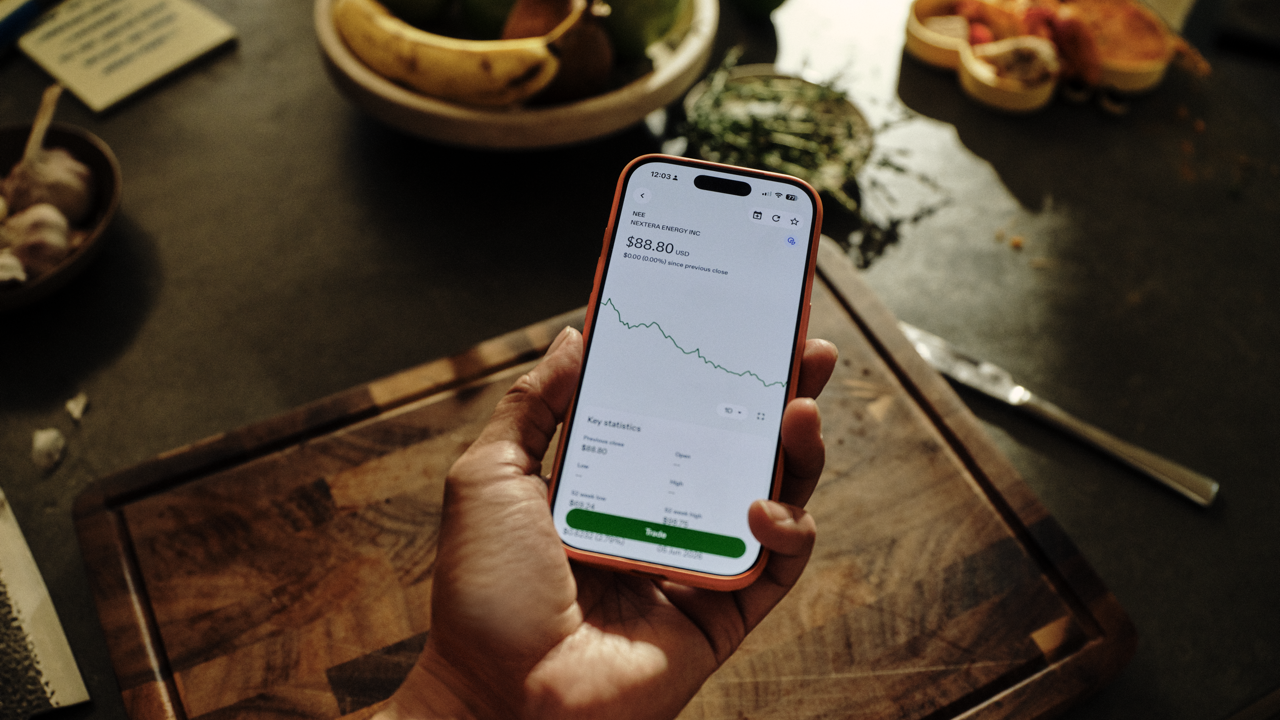
Starting July 29, 2026, Questmobile is being renamed to the Questrade app. The Questrade app is still your mobile destination for investing, account management, and money movement. Version 2.0.0 (opens in a new tab) has all of this, plus two new features to help you spot and seize more opportunities to grow your wealth: Discover, and Balance Sheet.
The app is organized into four tabs across the bottom of the screen:
Home is where you see your accounts and portfolio. It has two sub-tabs: Investing, where you view your accounts, equity, P&L, and positions, and Balance Sheet, which lets you connect accounts from other financial institutions to see your assets, liabilities, and net worth in one place.
Discover is a personalized market feed built around your holdings, watchlist, and topic preferences. It contains your Explore feed with scored news, sector data, trending stocks, analyst insights, and upcoming events.
Manage brings your account operations together. Deposit, withdraw, transfer, open accounts, view documents, and check transaction history all live here. Status cards at the top track any requests you have in progress.
Search lets you look up any symbol and trade directly from the results.
Download the latest version of the Questrade app in the app store (opens in a new tab).
What happened to Questmobile?
Questmobile has been renamed to the Questrade app. It is the same app with the same login credentials. The update is version 2.0.0, available in the App Store and Google Play.
How do I get the update?
If your app store is not set to receive automatic updates, you can go to the App Store or Google Play and update Questmobile. It will appear as Questrade on your device once the update is installed.
You can check your app version in the bottom of the menu, the Questrade app is v2.0.0 onwards.
Where do I find my accounts?
In the Home tab. Tap Investing at the top to see your accounts, total equity, P&L, and positions.
What is Balance Sheet?
Balance Sheet in the top menu of the Home tab, next to Investing. It lets you connect accounts from other Canadian financial institutions so you can see your assets, liabilities, and net worth in one place. Your Questrade accounts are added automatically. It is optional. See How to connect your accounts in Balance Sheet for a full walkthrough.
What is Discover?
Discover is a personalized market feed. It shows market news scored by impact and sentiment, sector performance, trending stocks, analyst insights, corporate events, and breaking news. The feed personalizes based on your positions, watchlist, and topic preferences. See What is Discover? for a full walkthrough.
What is the Manage tab?
Manage brings your account operations into one place. You can deposit, withdraw, transfer, open accounts, view transaction history, and access documents here. If you have a request in progress (like a deposit or transfer), a status card at the top tracks it for you. See our status tracking article.
How do I place a trade?
Tap Search, look up a symbol, and trade from the quote page. You can also trade directly from the Explore feed.
How do I move money?
Deposit, withdraw, and transfer are in the Manage tab.
Where are my documents and transaction history?
Both are in the Manage tab. Tap Documents for statements, tax slips, and confirmations. Tap History for transaction history.
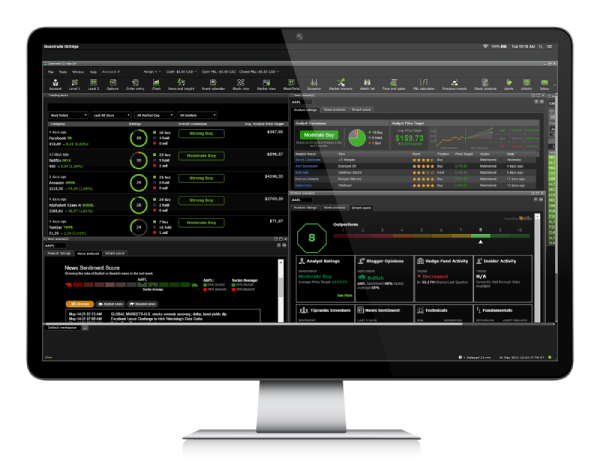
Is this the same app as Questrade Edge?
No. The Questrade Edge mobile app is a separate trading platform designed for active traders. The Questrade app is your home for managing your full financial picture across investing, saving, and spending.