Mobile and Desktop Authenticators
Published: Oct 17, 2022
Updated: Jul 22, 2026
Learn more about mobile authenticators and how they can help secure your account.
What is a Mobile Authenticator?
A Mobile Authenticator is a form of multi-factor authentication, and can help provide additional security when accessing your account online.
Authenticators are mobile apps that generate a unique time-based, 6-digit, one-time password (TOTP) that needs to be entered in addition to the standard username and password.

Questrade now supports mobile authenticators as a layer of additional security for your account.
You can turn them on or off anytime from your Settings (opens in a new tab) page.
We support all of the common authenticator apps including:
Google authenticator
Microsoft authenticator
Twilio Authy
LastPass authenticator
You can download an authenticator app from either the Apple app store, or from the Google play store on your mobile device.Learn more about setting up an authenticator, common log in questions, and more below:
Setting up a Mobile Authenticator
You can set up an authenticator from your Settings (opens in a new tab) page:
1. Log in (opens in a new tab) to your account.
2. Click your profile on the top right-hand navigation menu, then click Settings from the drop-down menu.
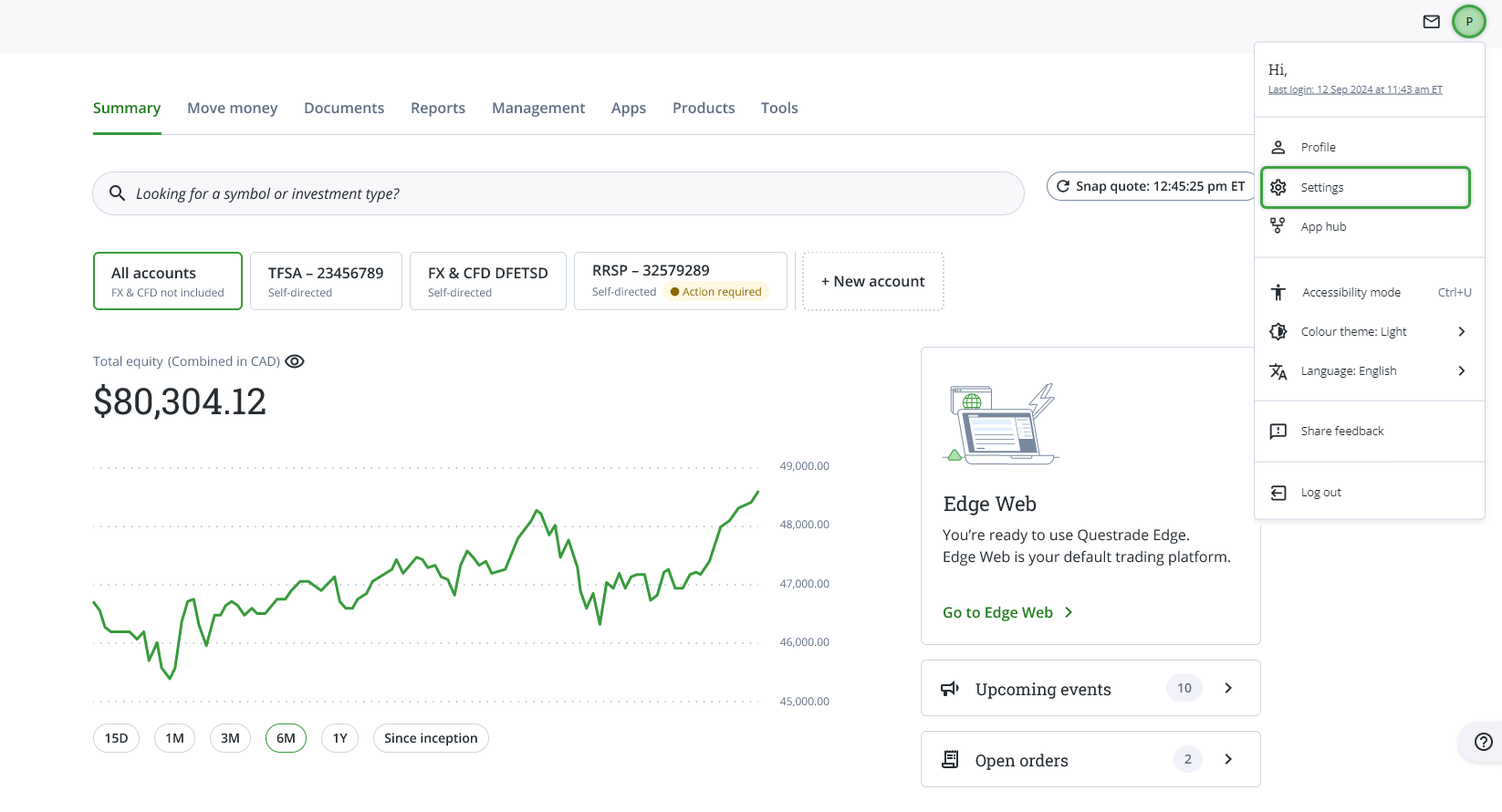
3. On the Settings page, hover down to the Security section and click on Edit.
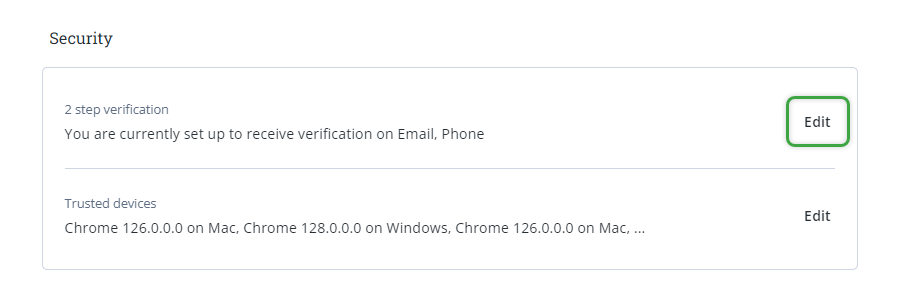
4. Click Set up beside the Authenticator app section.
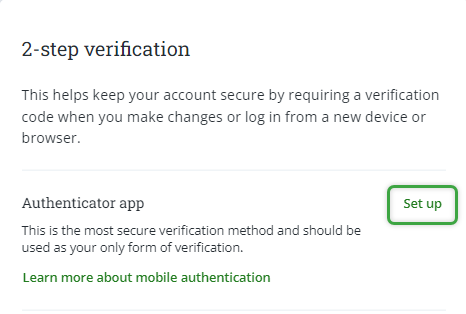
5. On the next page, you’ll be shown 10 recovery codes, please save these in a secure place.
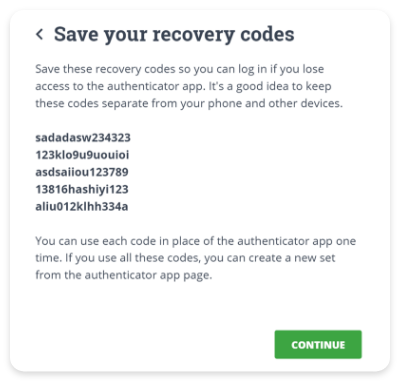
For more information on recovery codes and how they work, please check out the section below.
Once you’ve saved these, click the green Continue button.
6. Once you’re on the next page, please open the authenticator app on your mobile device or phone, and add a new account.
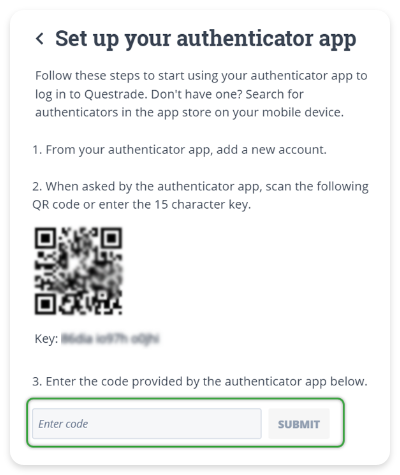
The authenticator app will give you the option to scan a QR code with your device’s camera, or you can enter the 15 character key shown on this page.
Once you scan the code, or enter the characters, your mobile authenticator will provide you with a secret code, please enter this at the bottom, then click Submit.
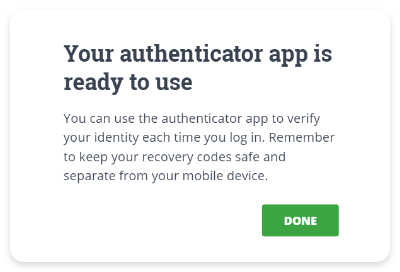
7. Congratulations, you’ve successfully paired the mobile authenticator on your device with your Questrade account.
Once you’re finished, you’ll see this screen below, and will be taken back to the Settings page.
Logging in with Authenticator enabled
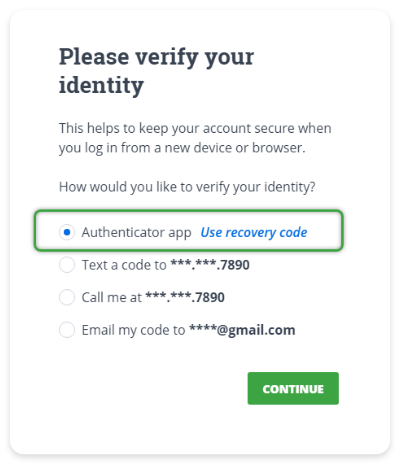
After you’ve set up your mobile authenticator, a new option will appear during a 2-step verification prompt when logging into your account.
Click the circle next to the Authenticator app option, then click Continue below to continue the log in process.
If you have lost your mobile device, or access to the authenticator app, you can click the blue Use recovery code link to use one of your recovery codes to log in.
Please see the section below for more information on recovery codes.
On the next screen, you will need to enter the secret code from the authenticator app on your mobile device.
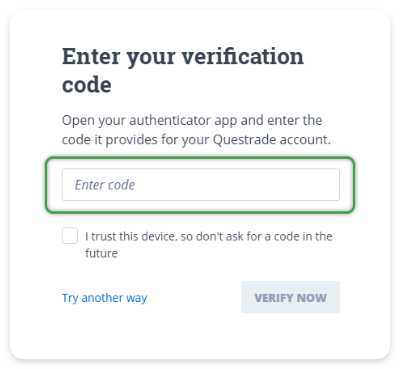
Open the authenticator app you have linked to your Questrade account.
There will be a 6-digit one-time code shown next to your Questrade account.
Enter the code from the authenticator app on the Questrade website.
If you’re logging into Questrade Edge Desktop, the process is the exact same.
This code expires every 30 seconds, please make sure to enter it before then.Tip: If the code shown in your mobile authenticator is expiring soon, sometimes it’s better to wait until the timer ‘rolls over’.Congrats! You’ve logged into your account using a mobile authenticator. Check out the sections below for more information about added security, recovery codes and more.
Added security
When you log into your Questrade account online, you will be asked to perform a 2-step verification if you’re logging in from an unfamiliar device for the first time, or if unusual network activity is detected.
You also have the option to enable Added security on the Settings (opens in a new tab) page.
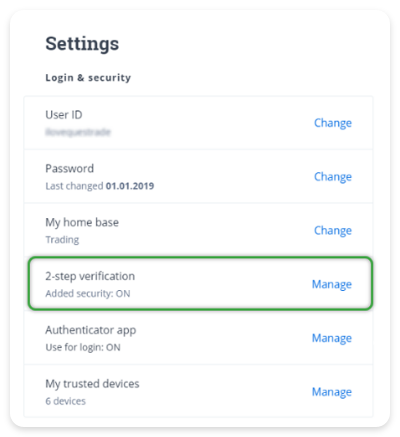
Click Manage (opens in a new tab) to modify your added security settings here.
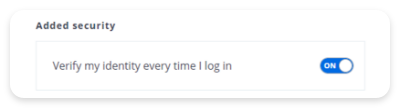
On this page, you have the option to turn on added security by clicking on the on/off button.
If you turn this option on, every time you log into your Questrade account your 2-step verification prompts will appear.
If this option is turned off, then 2-step verification prompts will only appear for new devices, or unfamiliar networks.
Enabling or disabling phone 2-step verification
On this page, you can also enable, or disable any of your additional verification options. By default, all three will be turned on after you enable your mobile authenticator, but you can also disable SMS notifications for additional security.
If you disable SMS 2-step notifications, you will only be able to log in using your mobile authenticator app.
If you have disabled SMS notifications, and lose access to your phone, you can still access your account using your secret recovery codes. Check out the section below for more details.
Alternatively, you can contact our support team via phone at 1.888.783.7866, or live chat to access your account if you have lost both your mobile device, and your recovery codes.
Recovery codes
There are 10 recovery codes generated when setting up your mobile authenticator for the first time. These can be used to access your account if you lose your mobile device, or access to your mobile authenticator app.
Please take care to save these recovery codes in a secure location, preferably offline where they cannot easily be accessed. If you must store these codes online, please consider using a secure password manager app or tool.
Remember: If someone has access to your username, password and recovery codes, they can get access to your accounts. Please secure these codes like you would any other sensitive information. (locked filing cabinet, safe, etc..)
After you use a code to log in, that code expires, and will not work in the future. If you have used all five of your recovery codes, you can always generate a new set from the Settings -> Authenticator app page.
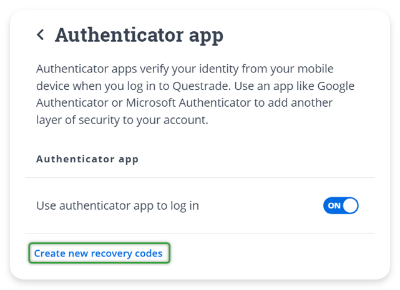
Once you create a new set of recovery codes, your old recovery codes are replaced, and will not work.
Please make sure to update your recovery codes wherever you have saved them once you generate a new set.
Setting up a desktop authenticator
For the strongest protection, we recommend using an authenticator app on your phone rather than your computer. Since your phone is a separate device from the one you use to log in, it keeps your account protected even if your computer is ever compromised.
You can also set up an authenticator on your computer. Desktop authenticators work the same way as mobile apps, generating a secure 6-digit code that refreshes every 30 seconds — but for best security, a mobile device is preferred since it's isolated from your login device.
Before you start
Windows: Download Open Authenticator (opens in a new tab) from the Microsoft Store and install it using the default settings.
Mac: Use the built-in Passwords app (requires macOS Sequoia or later (opens in a new tab)).
Steps
Log in to Questrade, go to Settings > Security > 2-step verification, and click Edit.
Click Set up next to Authenticator app.
Save the 10 recovery codes shown on the page. Copy them to a password manager or print and store them securely. (These are your only backup if you lose access to your desktop app). Click Continue/Next.
Copy the text string labeled Key located below the QR code. (Note: You cannot scan a QR code from your own screen, so you must use this key).
Open your desktop authenticator app and add the key based on your operating system:
For Windows (using Open Authenticator):
Click the + button and select manual entry.
Enter your Questrade login as the label.
Paste the key you copied (without spaces).
Set the issuer to Questrade and click Save.
For Mac (using the Passwords App):
Click on Codes from the left menu options, then click the + button.
Paste the key you copied and click the Use Setup Key button.
If you have already saved your Questrade credentials: Locate the entry and link it.
If you have not saved your credentials: Click the + button in the header, enter your username, password, and the website as https://www.questrade.com . Click Save to generate your 6-digit code.
Return to your Questrade browser window. Enter the new 6-digit code from your desktop app into the Authenticator code field, then click Submit.
Your desktop authenticator is now linked. The next time you log in and see a 2-step verification prompt, select Authenticator app and enter the code from your desktop.
If the code in your authenticator is about to expire, wait for it to refresh before entering it.
If something goes wrong
The code is rejected when you click Submit
The most common cause is extra spaces left in the secret key. Open your authenticator app, delete the entry, and add it again. Make sure the key is one continuous string.
Open Authenticator is not available in the Microsoft Store
Check that your Windows version supports Microsoft Store apps (Windows 10 or later). If the store isn't available, any TOTP-compatible authenticator that supports manual key entry will work.