Order Confirmation Screen
Published: Oct 17, 2022
Updated: Jun 17, 2025
Understand all the data that shows up on the confirmation screen when you place a trade.
When you place a trade with any of our platforms, you are shown an order confirmation pop-up. This page will give you a quick summary of your order so you can review all the details before confirming and sending it to the exchange.
This feature can also be turned off if you don’t need to confirm your trades before sending them. This is quite risky however, as a small typo can lead to significant issues. We recommend leaving the order confirmation on if possible.
If you wish to turn off order confirmations, click the “Settings” icon at the bottom left of the navigation bar, and click the checkbox next to “Show order confirmations”.
Note: This help article is for the Edge Web and Edge Desktop platforms specifically.
Head to Placing a trade on Questrade app, Making a trade on Questrade Trading, or How to place an equity trade on Questrade Edge mobile to learn about order confirmation on those platforms.
Questrade Edge Web
When you click buy or sell within the Edge Web platform, you are shown the order confirmation window.
The summary at the top of the window shows your order:
The action (buy or sell)
Number of shares
The “ticker” of the investment you’re buying or selling
What type of order you used (market, limit, stop, etc)
If you used a limit or stop order, the price is also shown
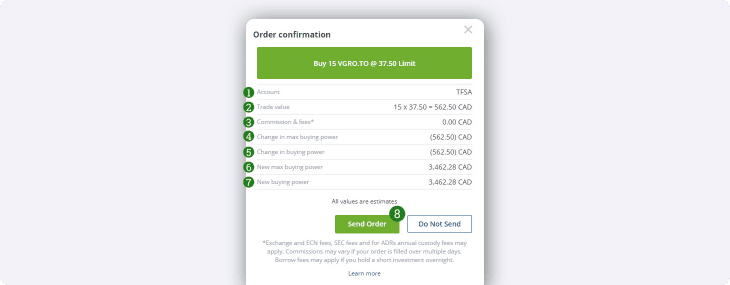
This is the account used for the order. Please confirm this information if you have more than one Questrade account.
This is the value of the trade. The amount of shares multiplied by the market value.
Your maximum potential commission charges for the order.
Your change in max buying power, (the total amount of cash used for the trade, including commissions).
Your change in buying power, this is only applicable for Margin accounts.
Your new maximum buying power after the trade has completed.
Your new buying power after the trade has completed.
Click “Send order” to confirm & send your order, or cancel your order here.
You can learn more about buying power and max buying power in our Understanding your account balances article.
Questrade Edge Desktop
When you click buy or sell within the Edge Desktop trading platform, you are shown the order confirmation window.
The summary at the top of the window shows your order:
The action (buy or sell)
Number of shares
The “ticker” of the investment you’re buying or selling
What type of order you used (market, limit, stop, etc)
If you used a limit or stop order, the price is also shown
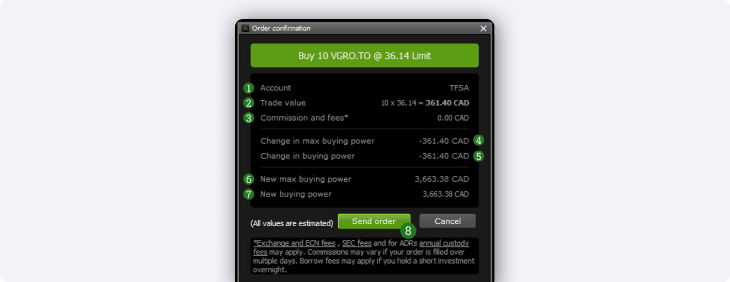
This is the account used for the order. Please confirm this information if you have more than one Questrade account.
This is the value of the trade. The amount of shares multiplied by the market value.
Your maximum potential commission charges for the order.
Your change in max buying power, (the total amount of cash used for the trade, including commissions).
Your change in buying power, this is only applicable for Margin accounts.
Your new maximum buying power after the trade has completed.
Your new buying power after the trade has completed.
Click “Send order” to confirm & send your order, or cancel your order here.
You can learn more about buying power and max buying power in our Understanding your account balances article.