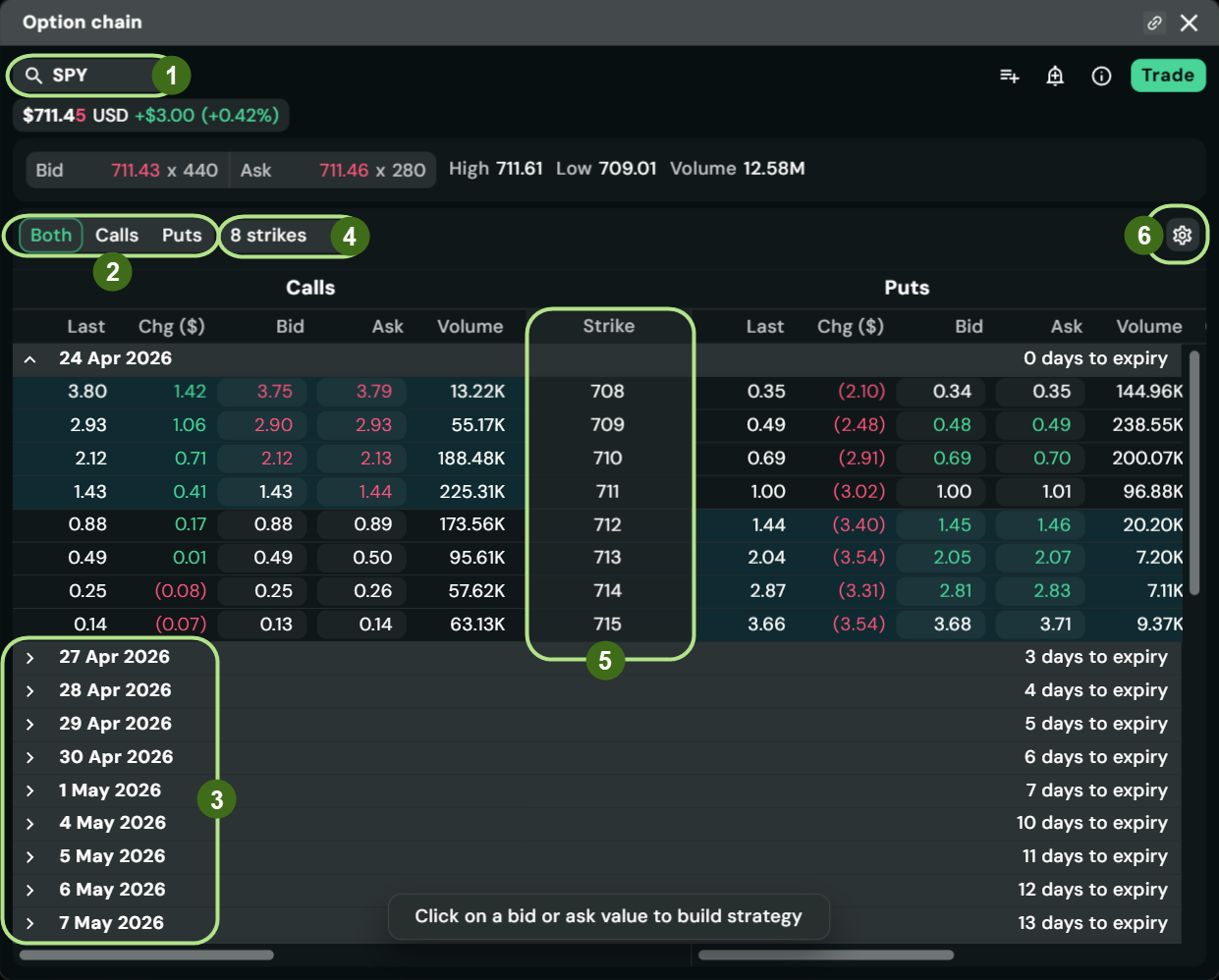
The Account Summary Page
Published: Oct 17, 2022
Updated: Feb 11, 2025
Learn how to read the summary of your investing account.
Your summary page is your default homepage after logging in. Here, you’ll see two main sections:
Investing accounts selection: Select the account you want to check. Your Questrade (and Questwealth) account will be displayed here. As well, if you have any accounts pending for completion, you will find them here. More information about account completion is found below this section.
Balances: View the balances of all your investing accounts combined in Canadian dollars (even if you hold U.S. currency or investments).
Your Cash, Market Value, and Total Equity balances are displayed using live data (when you refresh your page), and your Open P&L is shown as of the previous trading day.
For more information on terms like Total equity or Open P&L, check out our Understanding your balances article.
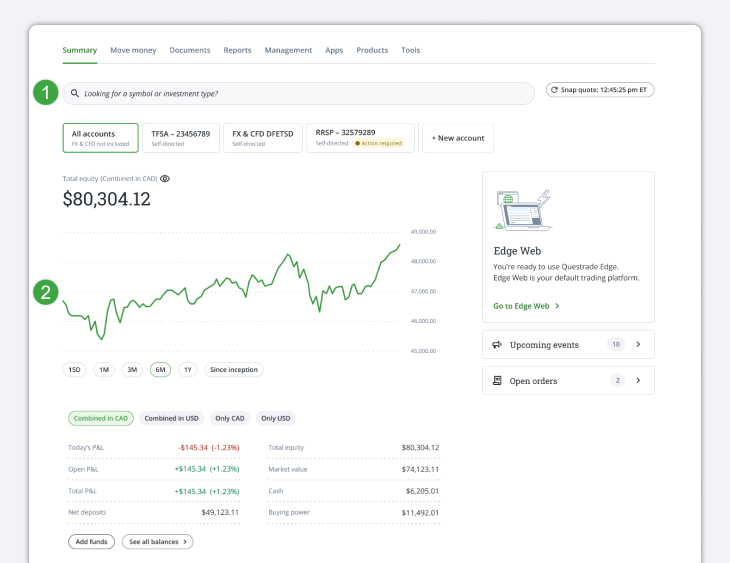
Please note: this image is for illustrative purposes only.
New accounts completion
For any new accounts awaiting completion, you'll find details on the required actions and next steps on this page. The right panel also displays the progress of your application.
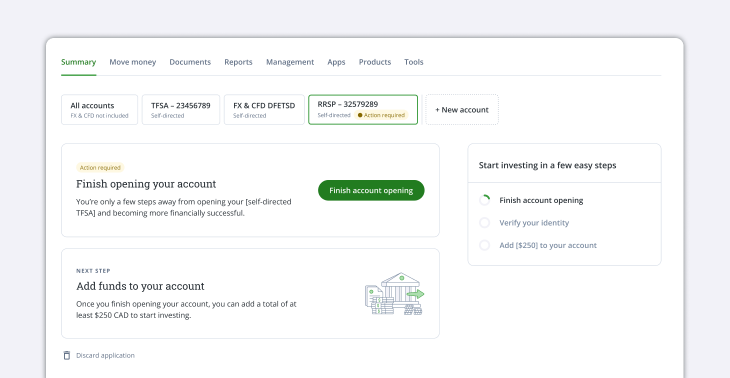
To delete a Self-directed account application, click the Discard application button at the bottom of the page. For Questwealth portfolio application, complete the questionnaire first before discarding it.
Investing Accounts
Here, you can see a snapshot of your
Investing accounts
and balances, including
and
accounts.
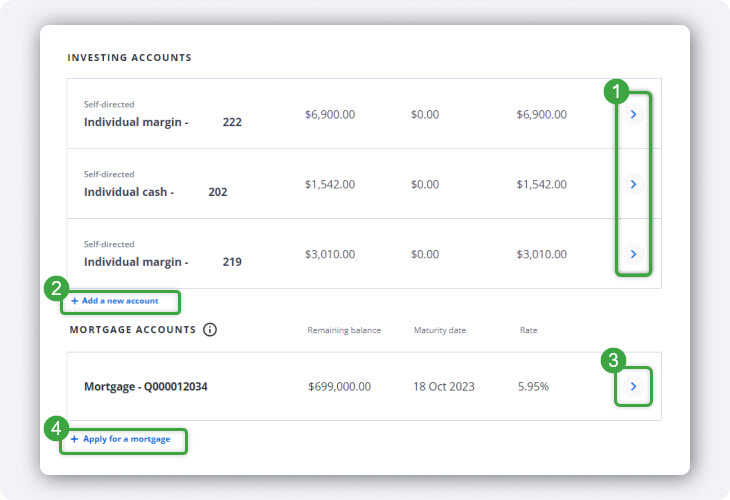
Select the arrow next to any of your completed accounts to view more in-depth information on the Investment Summary (opens in a new tab) page.
You can start a new account application from this area.
Select here to head directly to your mortgage dashboard to view more in-depth information.
If you’re looking to apply for a QuestMortgage, you can do so here.
Select here to head directly to your mortgage dashboard to view more in-depth information.
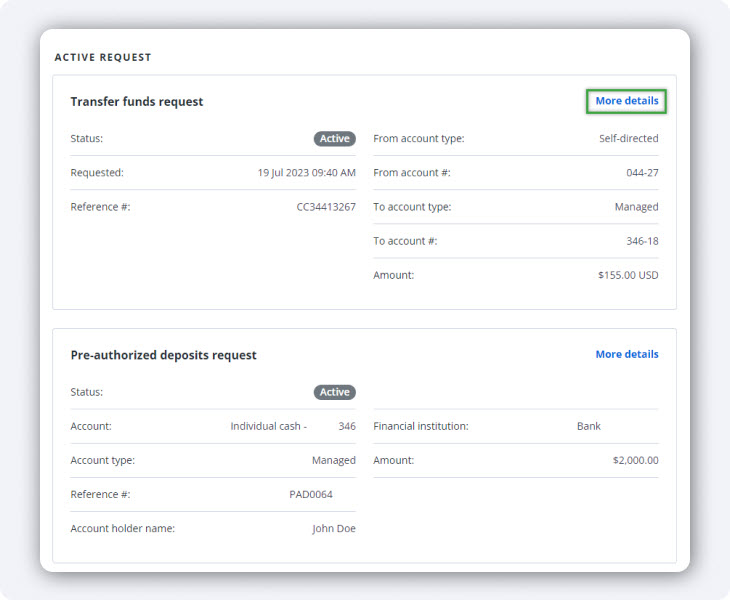
Active Request
At the bottom of the page, you’ll see any Active Requests that are in progress.
Active requests such as withdrawals, brokerage transfer ins, internal transfers, and more can be seen here.
Click the More details button to be taken directly to the request history page for more information or to modify your request.
You will see the corresponding account number, the date and time of your request, and other relevant information in this section.