Questrade MCP Technical Reference
This page is for developers and technical users who want the details behind the Questrade MCP connection: the server address, how AI agents connect and sign in, which agents are supported, and the full list of tools with their parameters. To connect your account, start with Connect your Questrade account to AI.
Server address
https://mcp.questrade.com/v1/brokerage/mcp
Every supported AI agent uses the same address. The server is operated by Questrade and exposes tools only. It does not expose MCP resources.
Connection details
Item | Value |
Server type | Remote MCP server hosted by Questrade (nothing to run locally) |
Transport | Streamable HTTP, stateless (no session ids) |
An unauthenticated request returns 401 with a WWW-Authenticate header that points to the protected resource metadata. MCP clients that follow the MCP authorization specification handle this automatically. Supported AI agents
Supported AI agents
Agent | How it signs in | How to add the server |
Claude (web, desktop) | CIMD | Settings, Connectors, Add custom connector. Enter the server address and leave the client secret blank |
Claude Code | CIMD | Run: claude mcp add --transport http questrade https://mcp.questrade.com/v1/brokerage/mcp. Then run /mcp, select questrade, and select Log in |
ChatGPT | CIMD | Turn on Developer mode, add a new plugin, and enter the server address as the Server URL |
Cursor | Pre-registered client | Add the server to mcp.json, then turn it on in Tools & Integrations |
VS Code (GitHub Copilot Chat) | CIMD | Run MCP: Add Server, choose HTTP, and enter the server address |
Codex CLI | CIMD | Run: codex mcp add questrade --url https://mcp.questrade.com/v1/brokerage/mcp. Then run: codex mcp login questrade |
For full step-by-step setup and troubleshooting for each agent, see Connect your Questrade account to AI.
Compatible agents also include GitHub Copilot CLI, Goose, Zed, Google Antigravity, Hermes Agent, VS Code Insiders, Codex, ChatGPT Atlas, Notion, Linear, Lovable, Factory, Conductor, Skydive, MCPJam, and OpenCode.
How tools that change things work
Tools that create, modify, or cancel something never act on their own. They send a Push Approval request to the Questrade app on your trusted mobile device, and nothing happens unless you approve it. If you decline or the request expires, nothing is changed. If you have no enrolled device, the call fails right away with instructions to set one up. You need version 2.0.0 or higher of the Questrade app.
In the tool tables below, tools marked Approval use this step. Tools marked Read only return information and do not need approval.
Some tools return immediately with the status pending_approval and an instructionId. Use get_instruction with that id to check the outcome: pending_approval, executing, succeeded, failed, denied, or expired.
Tool reference
The server provides 34 tools in the groups below. Which tools you see depends on your account and on features Questrade has turned on for you, and some tools are released gradually. Your AI agent only lists the tools available to you. Conventions used in the parameter columns:
Account IDs and security IDs are GUIDs. Get an accountId from list_accounts and a securityUuid from search_symbols.
Dates are YYYY-MM-DD. Date-times are ISO 8601 with a timezone offset.
Symbols are up to 32 characters of letters, numbers, period, colon, and hyphen (for example SHOP.TO).
Req means required. Everything else is optional.
Accounts and portfolio
Market data
Watchlist tools
Equity and ETF orders
create_order_instruction creates, modifies, or cancels an order using the operation parameter. It sends the order to your Questrade app for approval and never places it directly.
Shared parameters for both tools: accountId (Req); instrument (symbol); qty (positive number, up to 4 decimal places; fractional quantities are only accepted for eligible securities with market orders and the Day duration); side (buy or sell); type (market, limit, stop, or stoplimit); limitPrice (required for limit and stoplimit); stopPrice (required for stop and stoplimit); duration (Day or GTC, default Day).
Equity order tools
Option orders
Single-leg option orders only (buy or sell one call or put). Your account must be approved for options trading.
Shared parameters for both tools: accountId (Req); optionContractId (security id of a contract from get_option_chain); qty (whole number of contracts); side (buy or sell); type (market, limit, stop, or stoplimit); limitPrice (required for limit and stoplimit); stopPrice (required for stop and stoplimit); duration (Day or GTC, default Day).
Option order tools
Approval status tools
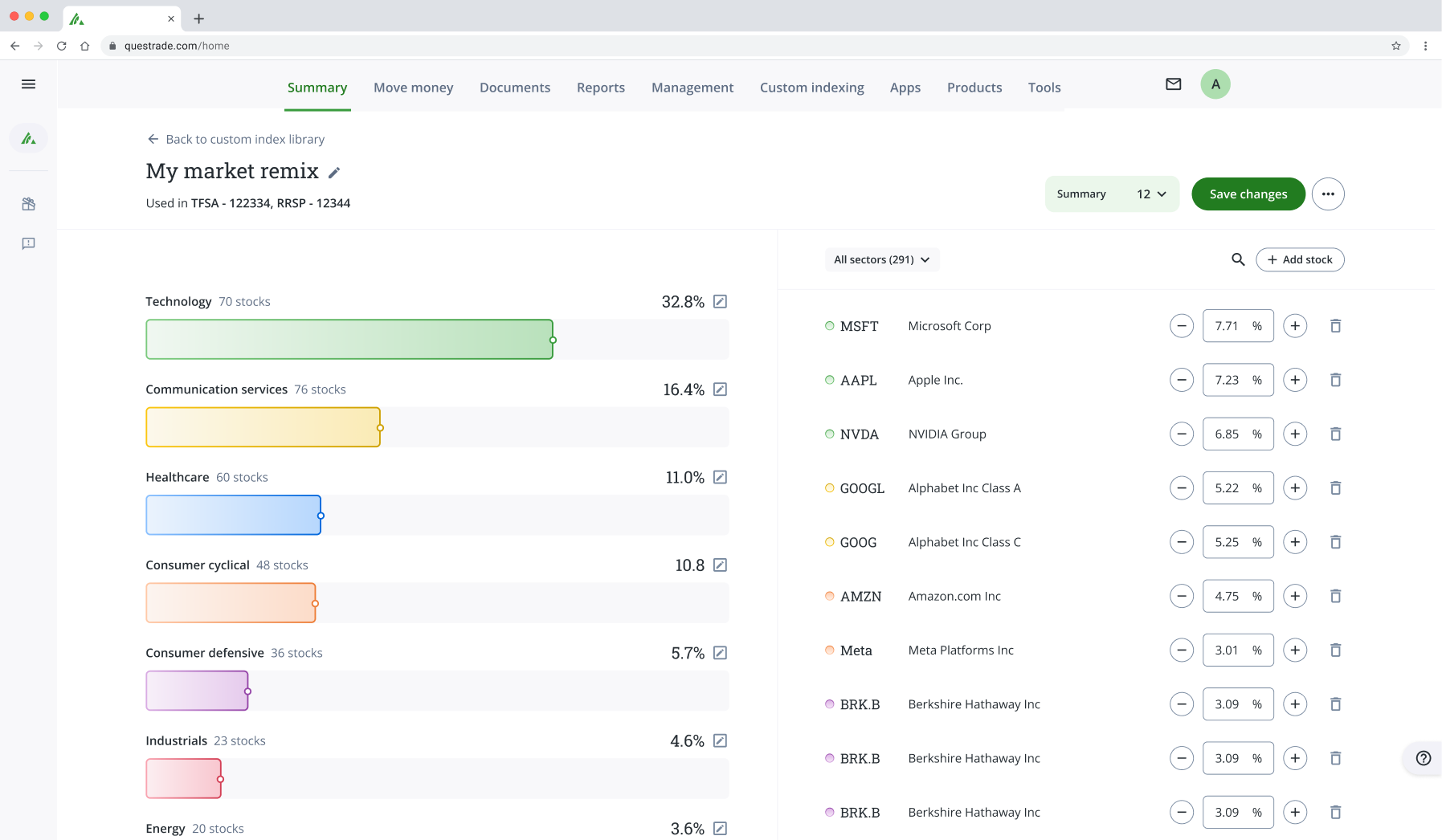
Custom Indexing
Custom indexes are saved as drafts. These tools do not open an account, add funds, or place trades. Field rules for custom indexes:
name: 1 to 100 characters. Letters, numbers, spaces, and - _ & ( ) ’ . , : + / $. Must start with a letter or number.
description: up to 1,024 characters.
holdings: 1 to 2,000 items, each with a symbol and a weight. Weights are percentages with up to 2 decimals, and they must add up to 100. US and Canadian stocks and ETFs only.
Custom Indexing tools
Balance sheet
Balance sheet data is a periodically refreshed snapshot, not live. External account data comes from third parties and may be delayed or incomplete.
Balance sheet tools
Flows
Flows are rules written in plain language that run when your conditions are met, for example “alert me when BRRR drops below $32”. The six Flows tools let your AI agent list, inspect, preview, create, and turn on or off your flows, and check what they have done. Every order a flow places waits for your approval in the Questrade app. New flows are saved in a paused state, and update_flow_status turns them on. Using Flows requires accepting the Flows agreement in Questrade.
Flows tools
Flow definition fields
The fields below describe a flow. They are used by preview_flow and create_flow.
Field | Details |
name | 1 to 200 characters |
conditions | List of conditions that must all be met, up to 5 in total. A condition can also be an anyOf group, where any one condition in the group is enough. Can be empty only when a schedule is set |
action | One action: PLACE_ORDER or SEND_NOTIFICATION (see below) |
schedule | frequency (DAILY, WEEKLY, MONTHLY, YEARLY); interval; weekdays; activeDaysOfMonth; activeMonths; count; holidayPolicy (SKIP, NEXT_BUSINESS_DAY, PREVIOUS_BUSINESS_DAY) |
validityPeriod | startDate; endDate (required, and capped at about one year); marketSession (MARKET_HOURS, EXTENDED_HOURS, ALL_HOURS, CUSTOM); startTime and endTime in HH:mm (both required for CUSTOM) |
cooldownPeriodMs | Minimum time between runs, from 1 minute to 30 days, in milliseconds |
maxDailyExecutions | 1 to 50 |
requiredPrints | 1 to 100 consecutive readings before a market data condition counts as met |
executionMode | MANUAL_APPROVAL only. Automatic execution is not supported |
Flow condition fields
Each item in a flow’s conditions list uses these fields.
Field | Details |
triggerType | Req. MARKET_DATA, BALANCE, POSITION, CALENDAR_DATA, or CHART_STUDY |
field | Req. The value to watch, such as a price. POSITION conditions support OPEN, CLOSED, AVG_PRICE, and MARKET_VALUE |
operator | Req. GT, GTE, LT, LTE, EQ, NEQ, CROSSES_ABOVE, or CROSSES_BELOW |
value or compareTo | Req, exactly one. value is a number or text. compareTo compares against a constant, or against another field with an optional adjustment by percent, amount, or factor |
symbol or securityId | What to watch for market data conditions |
accountId | Needed for BALANCE and POSITION conditions |
currency, eventType, exchange, interval, study, inputList | Optional extras. eventType is EARNINGS, DIVIDEND, or SPLIT. interval defaults to 1d. inputList watches a watchlist or an account's positions instead of one security |
Flow action fields
A flow has exactly one action, either PLACE_ORDER or SEND_NOTIFICATION. PLACE_ORDER action fields
accountId (Req)
symbol or securityId
orderSide (Req, Buy or Sell)
orderType (Req, Market or Limit)
limitPrice (required for Limit)
timeInForce (Day, GTC, GTEM, or Overnight; default Day)
Exactly one size: quantity, dollarValue, isMaxQuantity (buy only), or closePosition (sell only)
SEND_NOTIFICATION action fields
channels (any of PUSH, EMAIL, SMS; default PUSH)
title (up to 200 characters)
message (up to 1,000 characters, plain text)
The value of any single order placed by a flow is capped at $250,000.
Rate limits
Tool calls are rate limited per user, with tighter limits on tools that create or change things. Limits apply to each signed-in user across all of their AI agents, and they may change over time.
Tool calls | Per minute | Per hour | Applies to |
Read tools | 50 | 1,000 | Every tool marked Read in the tool reference |
Tools that create or change things | 20 | 300 | Every tool marked Approval in the tool reference |