Connect your Questrade account to AI using the Questrade MCP (Model Context Protocol)
Connect your Questrade account to your favourite AI agent. Once connected, you can ask about your portfolio, research stocks and options against live market data, and draft orders for your approval, using plain language prompts.
The server address is: https://mcp.questrade.com/v1/brokerage/mcp
Support is now fully available across all listed AI agents, including Claude, ChatGPT, Cursor, VS Code, and Codex CLI.
Two things stay true at all times:
You sign in on Questrade's own login page, so your AI agent never sees your password.
You approve every trade yourself. The AI agent cannot place, change, or cancel an order on its own.
To draft orders using the Questrade MCP, you will need to have version 2.0.0 or higher of the Questrade app and set up Push Approval. For more details please see: how to set up push approval.
What is an MCP connection
Questrade uses a shared standard called MCP (Model Context Protocol) so that AI agent can connect to your account safely. In practice, it means your AI agent can read your real Questrade data and draft orders for you, instead of you copying and pasting numbers by hand.
You connect once. After that, the AI agent can pull your account and market data, draft trade instructions, and help you place trades with your approval.
What you can do once your account is connected
Once your Questrade account is connected to the AI agent of your choice, you can ask questions and provide trade instructions in plain language. Reading your account and the markets is always allowed. Trading is only available if you grant trade permission during setup.
Ask about your accounts (read-only). For example: "What's my balance?" or "Show my open positions." Your AI agent can see your account balances, equity, open positions, open and filled orders, and account activity such as deposits, withdrawals, dividends, and commissions. Order and activity history covers the last 90 days.
Ask about the markets (read-only). For example: "What's Shopify trading at?" or "Show me the option chain for this stock." Your AI agent can look up a stock or company, pull quotes and price snapshots, get historical prices, and read option chains, including details like bid, ask, dividend yield, and earnings dates.
Make a plain language trade. For example: "Buy 10 shares of AAPL at the market price." Your AI agent first builds a preview of the order and then sends the trade instruction for your approval. Nothing is sent to the market without you in control.
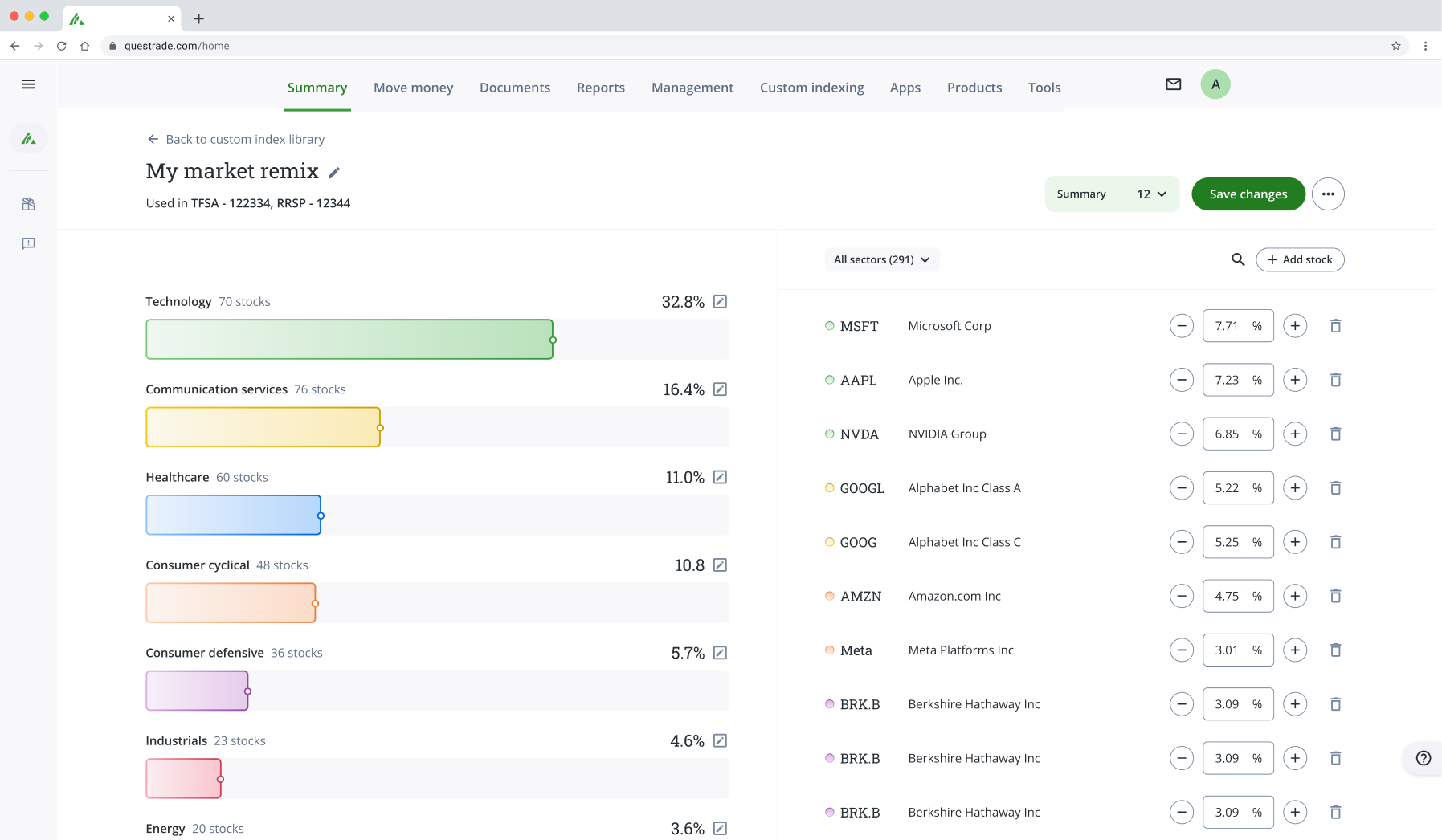
Build a Custom Index. For example: “Create a custom index that includes the top companies in the aerospace industry with a focus on technology providers and satellite manufacturers.” Your AI agent will create your index in the chat, and launch your index with your approval.
Pull your balance sheet. For example: “Show me my balance sheet.” Your AI agent can pull from your Questrade accounts and any external accounts you’ve linked in the app, combining your balances and positions into a single response.
External account data comes from third parties and may be delayed or incomplete.
Create and manage Flows. For example: “Build a Flow to alert me when BRRR drops below $32.” If you use Flows in Questrade Pro or Questrade app, your AI agent can create, preview, and manage them. You can also check their run history. Flows are trading and alert rules written in plain language that run when your conditions are met. You review and approve every order before it is submitted.
Supported AI agents
For now, you can only connect to the agents listed below. If yours is not listed, you cannot set up a connection yet.
Supported agents:
Claude (web, desktop)
Claude Code
ChatGPT
Cursor
VS Code (GitHub Copilot Chat)
Codex CLI
How to connect your accounts
Every AI agent connects to the same Questrade server address and signs you in through the standard Questrade login. The only difference between the agents is where you paste the address.
The server address is: https://mcp.questrade.com/v1/brokerage/mcp
How authorized trader access works
If you are an authorized trader on someone else’s account, you can use Questrade MCP to view and trade on those accounts.
Before this works, the account owner needs to turn on two settings in their Questrade account:
Go to Login or API Access settings.
Turn on Allow general API access.
Turn on Allow authorized trader access.
Once both settings are on, the authorized trader’s MCP connection includes those accounts. The account owner can turn off access at any time. This won’t remove previously shared data.
Through MCP, you can only view positions and balances and draft orders on authorized trader accounts. You cannot move money or change account settings through MCP.
Before you start
You’ll need a Questrade account, and a supported AI agent.
Your AI agent only sees the accounts on the Questrade login you sign in with, and only the permissions you grant during setup.
To approve trades, you need Push Approval turned on. You need version 2.0.0 or higher of the Questrade app to set up Push Approval. See: How to set up push approval.
Connecting does not change your commissions, market-data entitlements, or account fees. Standard pricing applies.
When you add the server, your AI agent opens the Questrade login in your browser. In Questrade, you sign in, review the permissions the AI agent is asking for, and grant them. You can grant read-only access without granting trade permission. Your AI agent never sees your password.
Connect Claude (web or desktop)
In Claude, open Settings, then Connectors.
Select Add custom connector.
Enter the Questrade server address.
Under Advanced settings, leave the client secret field blank.
Select Connect.
In the browser window, sign in to Questrade and grant permissions.
Connect Claude Code
In your terminal, run the Questrade add command: claude mcp add --transport http questrade https://mcp.questrade.com/v1/brokerage/mcp
In Claude Code, run /mcp.
Select questrade.
Select Log in.
In the browser window, sign in to Questrade and grant permissions.
After you connect, ask your AI agent to list your accounts to confirm the connection is working.
If Claude is refusing to place an order for you, please try and turn on the "Tools already loaded" setting in Connectors -> Tool Access -> Tools already Loaded
Connect ChatGPT
Click on your account in the bottom left.
Click Settings, then Security and Login.
Scroll Down and enable Developer mode.
Then, go back to the home page, and click on the Plugins tab on the left side.
Click on the “+” to add a new plugin
Enter a name, such as Questrade.
Enter the Questrade server address as the Server URL.
Select Create to save the connector.
In the browser window, sign in to Questrade and grant permissions.
Connect Cursor
In Cursor, open Settings, then Tools & Integrations.
Under MCP, select New MCP Server.
Enter the Questrade server address.
Save the file, then return to Tools & Integrations.
Turn the Questrade server on.
In the browser window, sign in to Questrade and grant permissions.
Connect VS Code (GitHub Copilot Chat)
In VS Code, open the Command Palette with Cmd+Shift+P (Mac) or Ctrl+Shift+P (Windows).
Run MCP: Add Server.
Select HTTP.
Enter the Questrade server address.
Name the server questrade, then choose this workspace or global.
In the browser window, sign in to Questrade and grant permissions.
Connect Codex CLI
Open your terminal
Run codex mcp add questrade --url https://mcp.questrade.com/v1/brokerage/mcp
Then, run codex mcp login questrade to login to questrade
In the browser window, sign into Questrade and grant permissions
After you connect, ask your AI agent to list your accounts to confirm the connection is working.
How trading works once you've connected your accounts
When you ask your AI agent to draft an order, it builds a preview first. The preview includes the symbol, whether you're buying or selling, the order type, the quantity, any limit or stop price, the estimated cost, and the commission. Nothing is sent to the market until you approve it.
In your AI agent, ask it to draft an order.
Review the order preview it shows you.
In Questrade, approve the order on your mobile device to place it, or decline to cancel it.
Your AI agent cannot skip the preview, and it cannot place, change, or cancel an order without your approval. To change an open order, it runs a fresh preview first. Cancelling an order cannot be undone once you confirm it.
Only connect AI agents you trust and control, and review every order preview before you approve it. Your AI agent can draft an order, but you are responsible for any trade you confirm.
How your connection is secured
You sign in on Questrade's own login page, so your AI agent never sees your password. What your AI agent can read or do is enforced by Questrade against the permissions you granted, not by the AI agent itself.
The connection is read-first. The parts that read your account and the markets come first. The parts that draft trades for execution are turned on separately, after an extra security check. Questrade can also switch off any part of the connection if there is ever a problem.
How to troubleshoot
Claude Code says it cannot register with the auth server.
Older versions of Claude Code fail with a registration error. Update Claude Code to the latest version, then connect again using the server address.
Trouble executing trades with Claude Desktop.
If you are experiencing issues executing trades using the Claude Desktop app, try enabling the "tools already loaded" setting within Claude to help mitigate the problem.
The login opens but the connection never finishes.
Check that you entered the exact server address with no extra characters, and that you finished signing in and granted permissions in the browser window. If the window closed early, remove the server in your AI agent and add it again.
Your AI agent says it cannot see an account.
Your AI agent only sees accounts on the login you signed in with. Confirm you used the right Questrade login, and that you granted account read permission during sign-in.
Your AI agent cannot find older orders or activity.
History through the connection covers the last 90 days. For older records, sign in to Questrade directly.
When you connect a third-party AI agent to your account, its responses, analysis, orders, and custom indices come from that agent, not Questrade, and are not Questrade's opinion or recommendation. You review and approve everything before it’s submitted, at your own discretion and risk. Stocks displayed are for illustrative purposes only.
Questrade does not control, monitor or take any responsibility for how your AI Agent uses your data. All actions taken, including trades are your sole responsibility in accordance with our API Access Agreement and Privacy Policy. You can revoke access anytime in Settings > API Access > Permissions, but this won't remove previously shared data. Please review your AI Agent's privacy policy before proceeding.