How to trade options in Questrade Pro
Published: Oct 17, 2022
Updated: Apr 28, 2026
Questrade Pro's next-generation tools and browser-based platform bring powerful options trading capabilities right to your fingertips — no download required. Learn how to buy and sell options in Pro.
Looking up an option chain in Questrade Pro is fast and intuitive. Because Pro lives entirely in your browser, there's nothing to install — just log in to your Questrade account and you're ready to go.
First, log into pro.questrade.com (opens in a new tab)
Next, click Option chain from the top menu, and enter the ticker symbol of the underlying security.

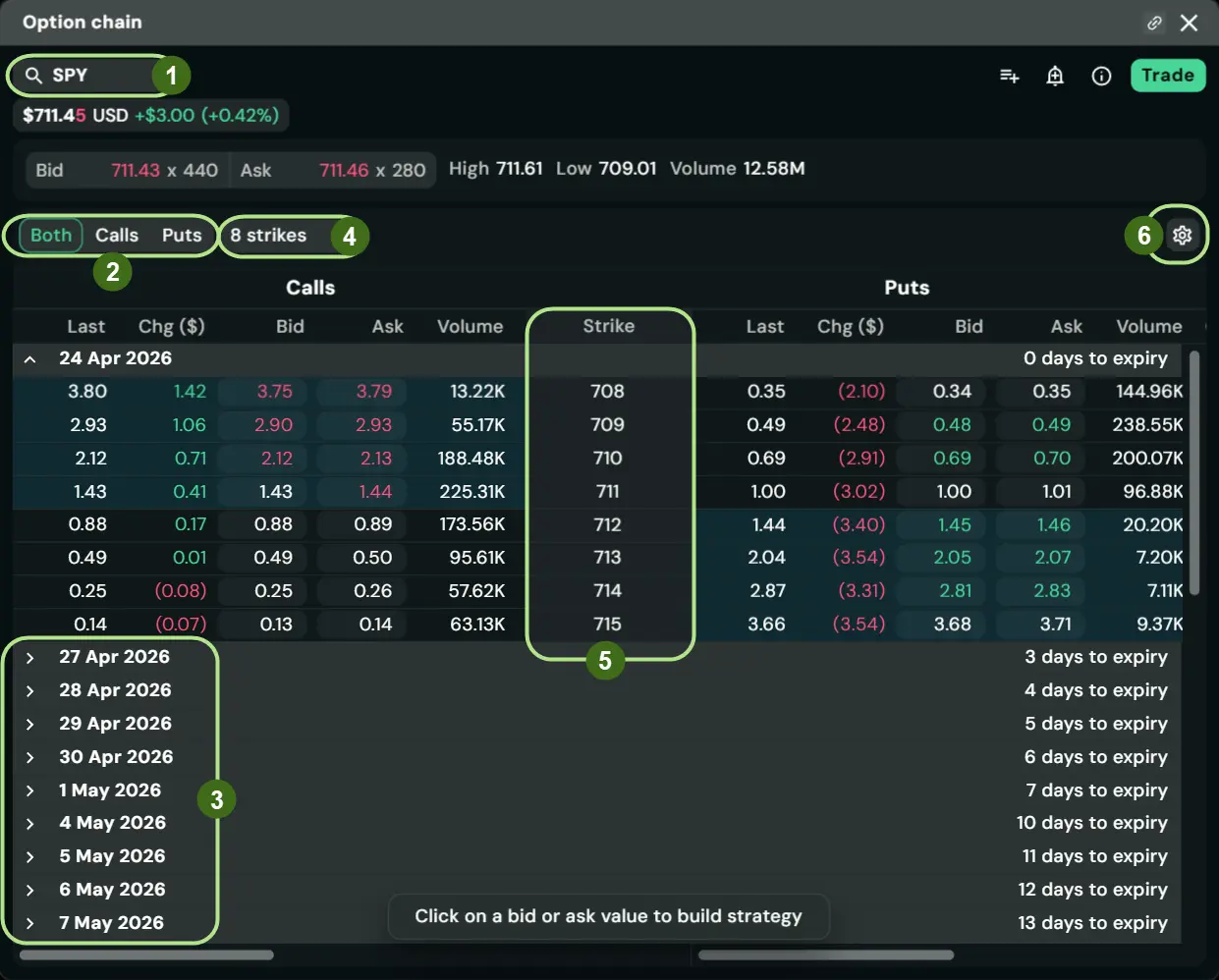
The Symbol lookup box here allows you to switch between different underlying securities.
The menu below allows you to switch between viewing Calls, Puts, or Both.
All expiration dates will appear on the left side in a list. You can toggle them on and off to view the strike prices at that expiration.
You can also choose to change how many Strike prices are shown in the quote table below.
You can also choose to view All strike prices
Please note: If you choose All strike prices, depending on the speed and performance of your computer, you may experience slowdowns due to the amount of information streaming and processing in the background.
If both Calls and Puts are selected, the strike prices will display in the middle, and quote information for calls will be on the left, and quote information for puts will be on the right.
The Settings button on the top right allows you to edit the default columns of information displayed here in the options quote table.
By default, you’ll see the Bid, Ask, Last traded price, Change in $, Volume, Open interest, Implied volatility, as well as ITM probability and OTM probability.
The additional columns available are: Ask size, Bid size, Change in %, and the various Options “Greeks”:
The “Greeks” (Delta, Theta, Gamma, etc) are explained in more detail in our Options terminology article.
Let’s take a deeper look at the options quote table:
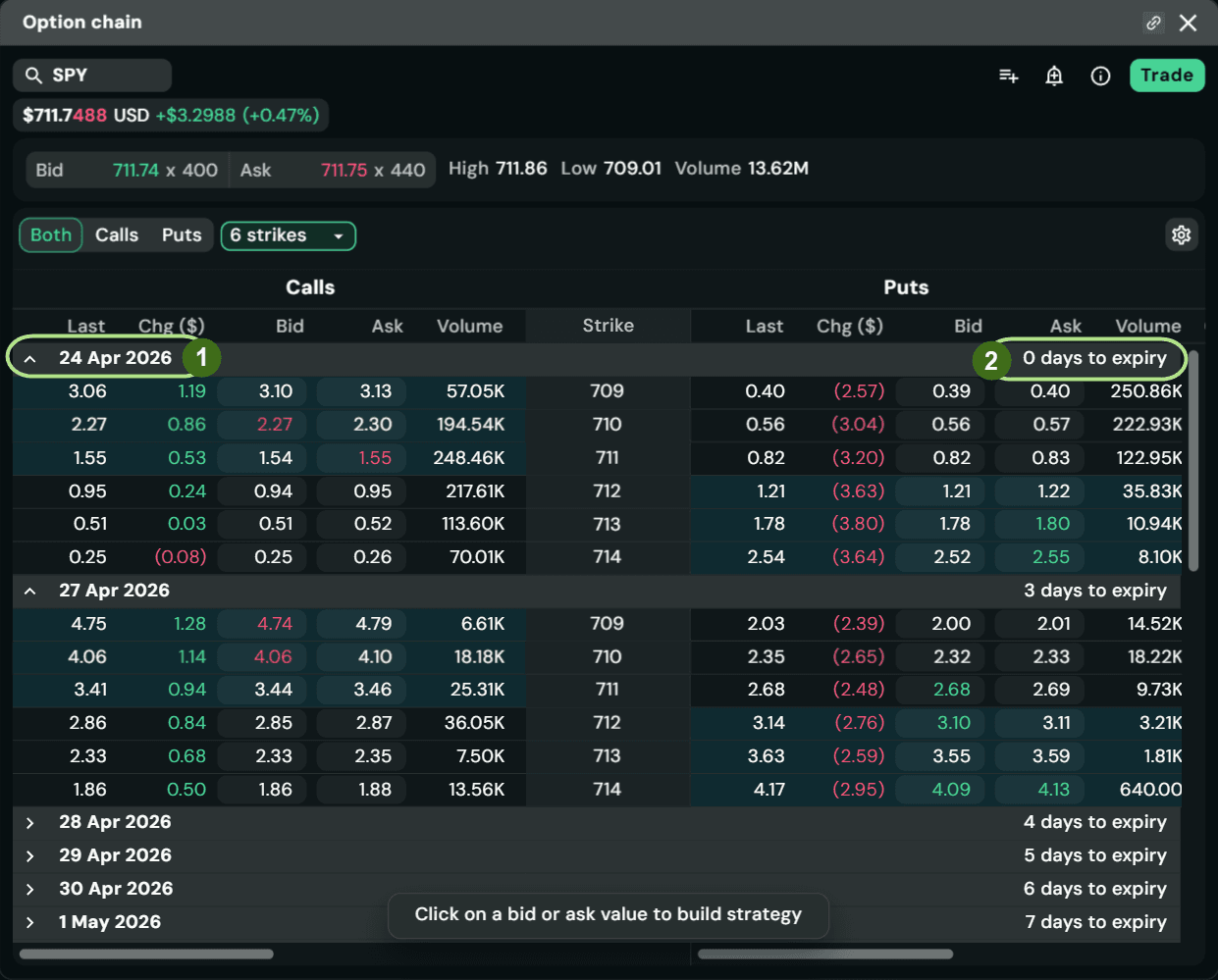
With the default view, Calls are shown on the left, and Puts are shown on the right side.
Options highlighted in blue are considered to be In-the-money, in this example, SPY’s price per share is $711.69.
On the top left, we’ll see the expiration date for the 4 strike prices shown.
You can also click to hide this specific expiration date, or click to expand any other dates below.
On the top right, we’ll see the amount of days left until expiry.
Can’t see the strike price you’re looking for? Try changing the view using the button at the top. If the strike price still isn’t available, it’s possible there are no options contracts available at that price.
The Option Strategy Builder:
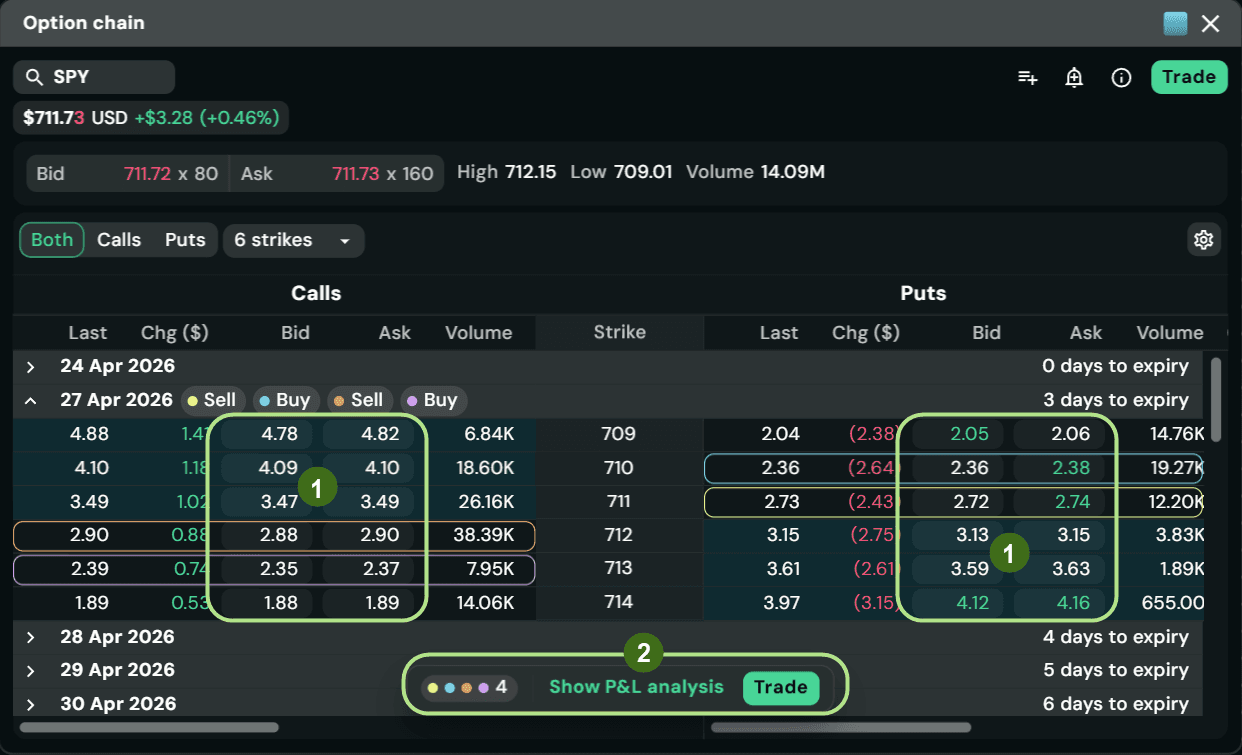
Click on any of the Bid or Ask prices to quickly choose what you want to trade. You can choose just one to make a single leg option trade, or alternatively, you may select multiple options that you wish to trade as a multi-leg option strategy.Check out this article on Option levels for more information about the different types of strategies available.
Clicking on Show P&L Analysis at the bottom will show you a summary of the trade you are considering. It will display a profit and loss diagram and show you your maximum loss and maximum profit potential.
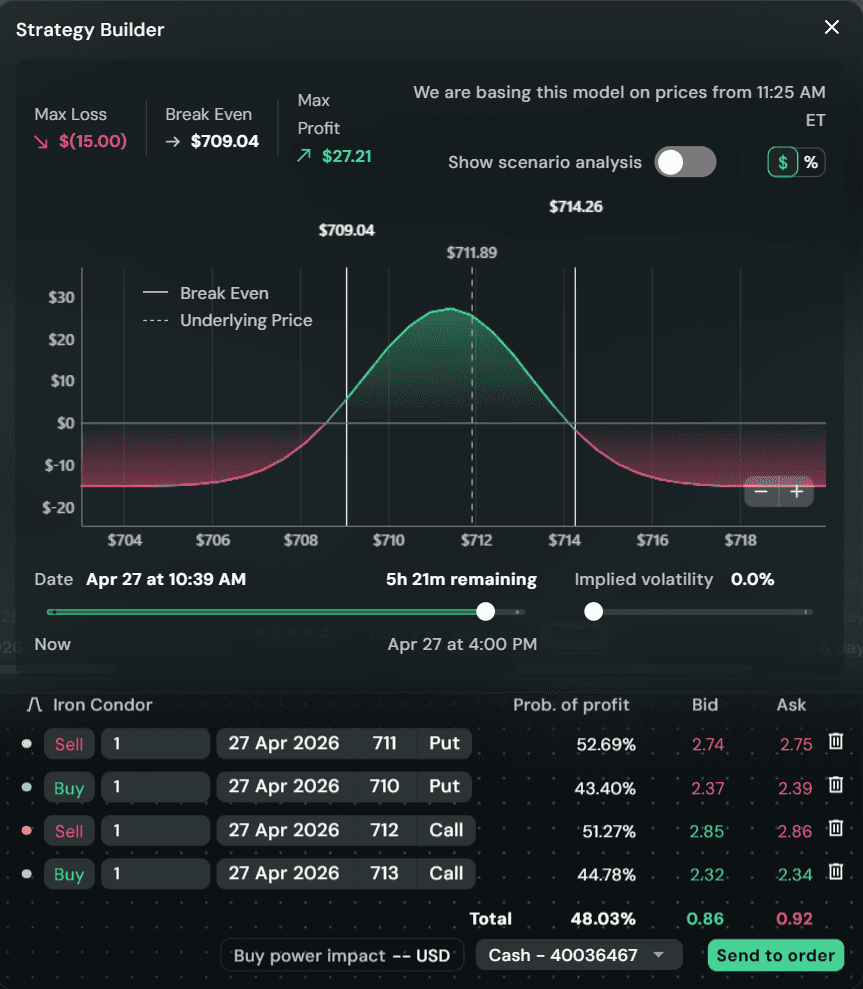
Click Send to Order and it will open a new order entry window with a limit order with the specific Bid and Ask Prices you selected earlier.
Tip: You can also ‘link’ this widget with any other widgets (level 1, order entry, charts..) by clicking the chain icon in the top right, and choosing a colour. This widget will then be associated with that colour, and if you link any other widgets such as a level 1 quote with the same colour, both widgets will automatically update to the same symbol. (I.e. Green link for options and green link for chart.)
Going further with Pro: Beyond the Option chain itself, Questrade Pro includes an Options radar designed to surface new opportunities across the market, along with AI-integrated tools and automatic chart pattern detection to help you analyze setups in real time. These next-generation features set Pro apart from any other platform in Questrade's lineup.
Ready to get started?
Trade Options in Pro (opens in a new tab)
Don't have a Questrade account yet?
Open one today and get started in minutes.
Questrade Pro Intelligence provides AI-generated data for informational purposes only and does not constitute financial, investment, or tax advice; users should verify all outputs against primary sources and official filings before making trading decisions.