Key features
Published: Oct 11, 2023
Updated: Jun 02, 2025
Learn more about the key features available on Questrade Trading.
Introducing our groundbreaking financial tools, designed to revolutionize your trading experience.
Discover easy to use features to make your trading seamless.
Research tools powered by TipRanks
Research tools powered by TipRanks are integrated into your trading platform at no extra cost. These tools provide a suite of features to aid your trading decisions:
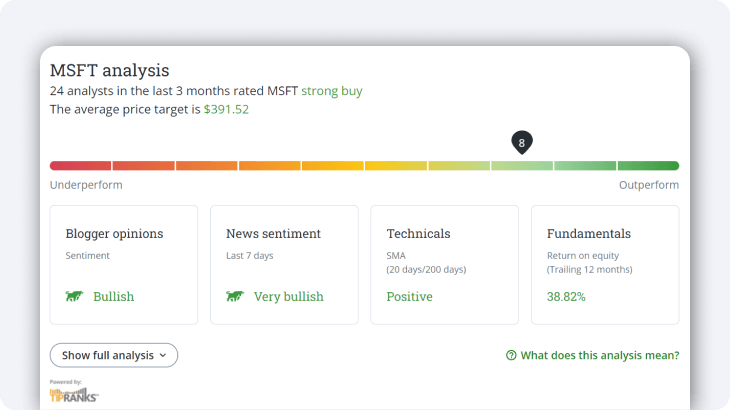
Trending Stocks: Discover significant market movements. You can filter results based on best/worst/most rated stocks, sector, and market cap.
Smart Score: Helps evaluate stock performance using analyst ratings and news sentiment.
Analyst Ratings: Provides a quick cheat sheet to gauge market sentiment for specific stocks, showing a stock’s target price and recommendation (buy, hold, or sell).
News Analysis: Categorizes news articles into "bullish" and "bearish" sentiments, giving you insights into current investor sentiment towards specific stocks.
Real-Time Snap Quote Prices
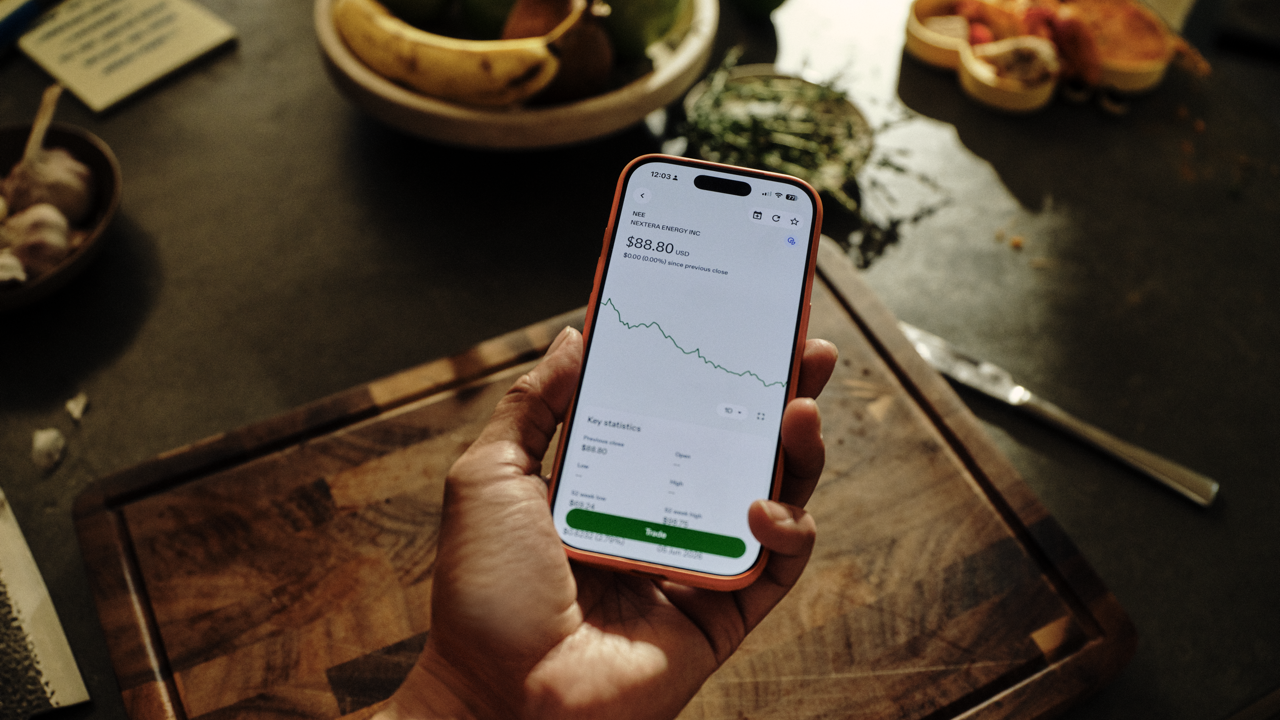
Stay ahead with real-time snap quote prices for stocks and ETFs. With only a single click, this feature helps you to monitor the market accurately and make informed decisions.
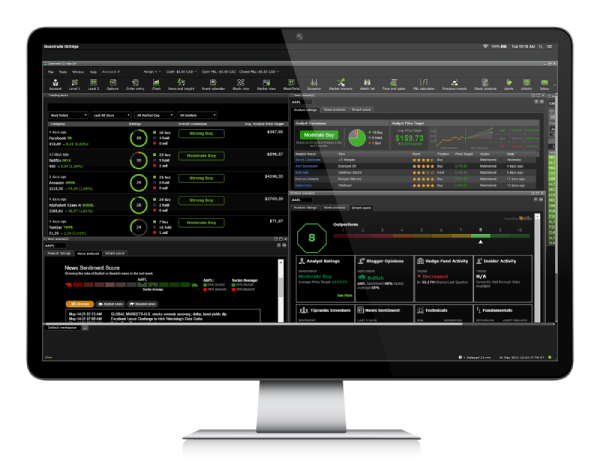
Tip: If you’re an active trader, real-time streaming watchlists, order entry and charts are available through the advanced Questrade Edge platforms.
Extended-Hours Trading
Trade during extended-hours with the Questrade Trading platform and take action when it suits you best, giving you more flexibility.
You can access pre and post-market trading on eligible symbols from 4 am ET to 8 pm ET, Monday to Friday.Learn how to use the GTEM order duration and more in our article about pre and post market trading.
Nicknames
Personalize your accounts for quick identification. Set up nicknames whenever you want through the settings menu - it’s a simple way to keep your investments organized.
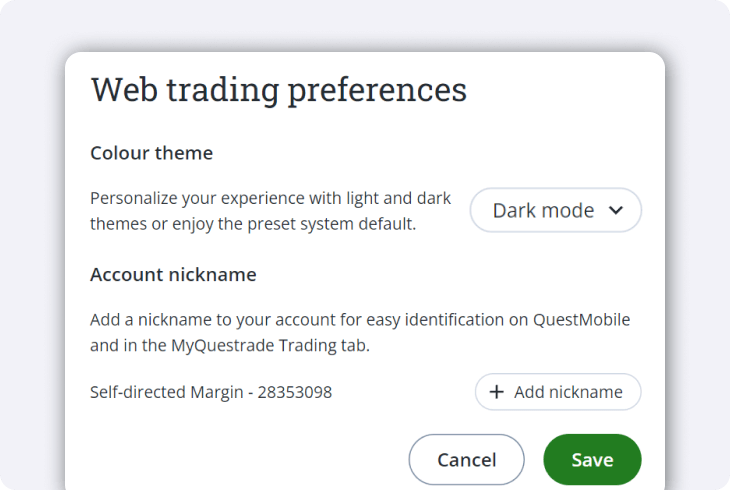
Dark Mode
Dark mode allows you to personalize your trading platform with light and dark themes in your settings or use the preset system default. It's all about making your trading environment as comfortable as possible.
Learning Mode
Whether you're just starting to learn about trading or need to brush up on key investing terms, Learning mode will help you get there. Learning mode gives you quick explanations of what you’re seeing so you can better understand key concepts about trading and investing.
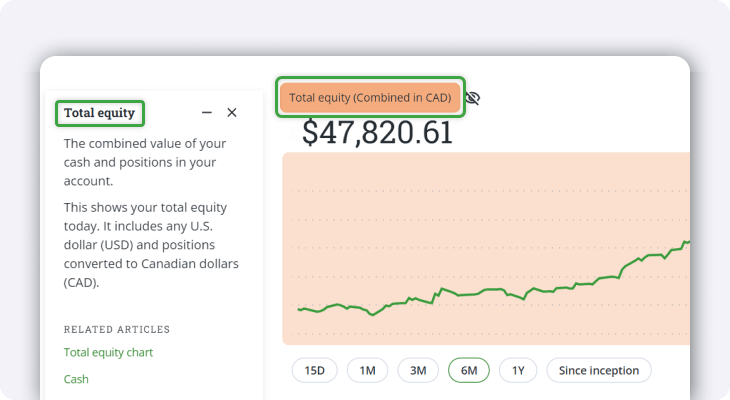
To turn on Learning mode:
Select the question mark button on the bottom right of the trading view window
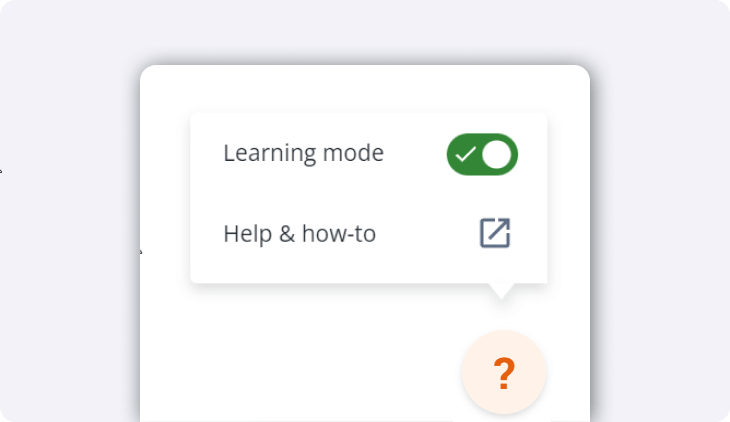
Switch on the Learning mode toggle. Once on, you'll notice several sections on the trading view will be highlighted, including an orange circle. This shows that there is a learning mode explanation in this section.
Browse the highlighted sections and key terms, and select it to show their description.
Experience the future of trading with our innovative platforms. Remember, we're here to empower you on your trading journey, providing the tools you need to navigate the financial markets easily and confidently.
Securities shown are for illustrative, educational, and visual purposes only, and should not be relied upon as financial advice. The information provided is not intended to be and should not be construed as a recommendation, offer, or solicitation to buy or sell.