Questrade Edge Desktop watchlists
Published: Oct 17, 2022
Updated: Feb 07, 2024
Learn how to create and edit watchlists on Questrade Edge Desktop.
Questrade Edge Desktop offers a range of powerful features for creating and managing watchlists.
With custom columns, the ability to link to other windows within Edge and fast navigation between watchlists, plus simplified order entry for securities on your watchlist, you can easily stay on top of the market.
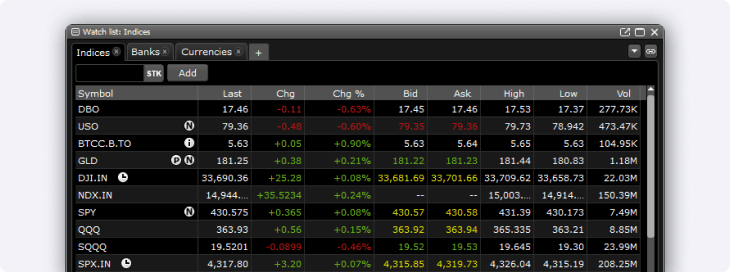
Securities shown are for illustrative, educational, and visual purposes only, and should not be relied upon as financial advice. The information provided is not intended to be and should not be construed as a recommendation, offer, or solicitation to buy or sell.
Creating a watchlist
First, open the Edge Desktop program on your PC or Mac, then log in.

Next, select the Watchlist symbol in the top navigation bar to open the Watchlist window.
To create a new watchlist, select the + icon followed by New watchlist.
To keep your platform organized, name your watchlist.
Once the watchlist is created, go to the Symbol lookup bar to add securities you’d like to follow.
Editing a watchlist
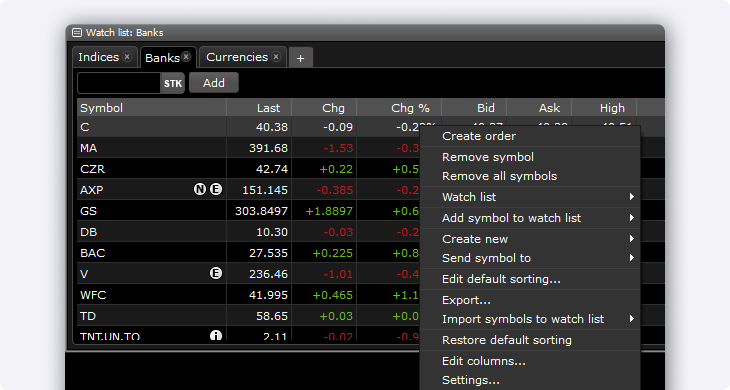
Later, if you decide to remove securities from your watchlist, right-click on the security and choose Remove symbol.
Right clicking also gives you handy access to order entry, and other useful watchlist settings.
Select the downward menu arrow in the right corner of the watchlist window to manage your watchlists.
Create additional watchlists
Add public and private watchlists
Change settings like size, colour, fonts, and more
By default, Edge Desktop shows you key information about the securities you add to your watchlist, such as last price, ask, bid, $/% change, high & low of the day, and volume.
However, you can customize the data that appears in your watchlist by selecting the downward arrow and then Edit columns.