Trading layouts and System compatibility
Published: Oct 17, 2022
Updated: Oct 17, 2022
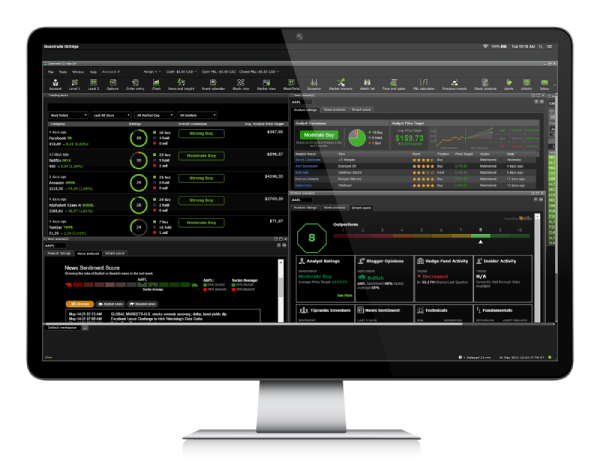
Learn more about the custom trading layouts and system compatibility for Edge Desktop.
If your custom layouts don’t transfer over after installing a new version of Questrade Edge, it’s easy to add them manually.
Open Questrade Edge Desktop and log in, then click the File button from the top navigation bar.
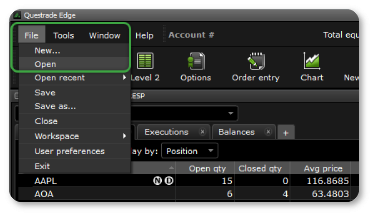
Under File, click Open, then select your custom layout file that is saved by default under Users/Documents/Questrade IQ Edge.
Note: After installing the 64-bit version of Edge Desktop, the folder name will become /Questrade Edge.
After modifying and using your new layout, you can save it in a new custom location on your PC anytime by clicking File -> Save as.
System compatibility
Questrade Edge Desktop is available for both Windows and Mac, you can view the minimum system requirements here.
If you’re unsure whether your Windows machine is 32 or 64-bit, you can easily check in your system settings:
Click the Start menu icon from your desktop
Click the Settings icon from your start menu (or navigate to your Control panel on earlier versions of Windows)
Click the System icon/option
Click the About menu option at the bottom left
Under Device specifications, look for System type
Most modern Windows computers are all 64-bit (and all Macs are 64-bit by default).
If you’re running an older machine with Windows 7, 8, Vista, or XP, please check your system compatibility before installing the appropriate version of Questrade Edge.