Download and install Edge for Mac
Published: Oct 17, 2022
Updated: Jun 25, 2025
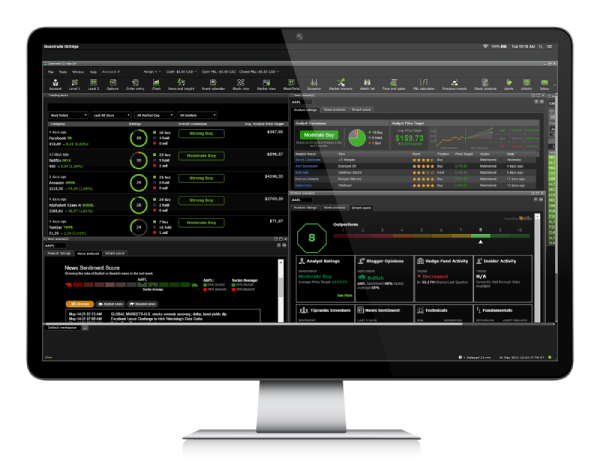
Download and install Questrade Edge Desktop for Mac and start trading like a pro.
Questrade Edge Desktop is also available for Mac operating systems. Please follow the additional instructions below if you encounter any issues during setup.
Download for Intel Mac (opens in a new tab)
Download for Apple Silicon (opens in a new tab)
Note: If your Mac is configured to only install applications from the official Apple App store, you may see an error message. If this is the case, please follow the additional steps in the section below to finalize your installation.
Mac security preferences
When installing on a Mac computer, you may encounter the following error message depending on your security preferences:
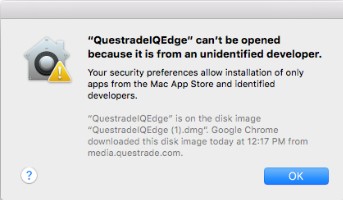
To stop this message from displaying for future downloads from the Questrade.com website, please change your Mac’s gatekeeper settings:
Open System Preferences
Open Security & Preferences
Make sure that the General tab is selected. Click the lock icon at the bottom to make changes.
Enter the username and password into the prompt that appears and click Unlock.
Under the section labeled Allow applications downloaded from: select Anywhere.
On the prompt that appears, click Allow from Anywhere
After downloading the Edge Desktop app & running it for the first time, you can return to your settings to change it back to the default if you desire.
Under Allow applications downloaded from: change it to Mac App Store and identified developers.
Exit System Preferences by clicking the red button in the upper left of the window.
You can learn more about this setting by visiting Apple Support (opens in a new tab).